Master Automated Data Cleaning Excel: Save Time & Boost Accuracy

Let's face it: manually cleaning data in Excel is a soul-crushing task. Anyone who's spent hours hunting down errors, zapping duplicates, and wrestling with inconsistent formats knows the pain. It's not just tedious; it's a massive time-sink that stalls the real work of analysis and decision-making.
This manual drudgery is a huge bottleneck, one that’s riddled with opportunities for human error and wasted resources.
The Problem with Manual Data Cleaning in Excel
Spending too much time on Excel?
Elyx AI generates your formulas and automates your tasks in seconds.
Sign up →Excel is a powerhouse, no doubt about it. It's the go-to tool for over a billion people. But when you're stuck prepping data by hand, that power feels a long way off. Every hour spent on these repetitive cleaning tasks is an hour you can't spend on high-impact, strategic work. It’s a huge opportunity cost.
The problem goes deeper than just lost time. Manual cleaning is a magnet for human error. A tiny typo, a missed duplicate, or a date formatted just slightly differently can poison an entire dataset. These subtle mistakes often slip past our eyes, only to surface later in flawed reports, bad business insights, and poor decisions.
Picture this: you're pulling together a quarterly sales report, but a few duplicate entries accidentally inflate the revenue figures. Suddenly, leadership is making strategic calls based on data that isn't real. That's the risk you run.
The True Cost of Doing Things by Hand
This isn't a small annoyance—it's a systemic drain on productivity. Industry reports paint a pretty bleak picture, revealing that up to 80% of a data analyst's time is burned just cleaning and organizing data, not actually analyzing it.
Think about that. It's a global issue, with companies pouring huge amounts of money into manual processes that are prone to failure. On some larger projects, I've seen organizations assign a team of 8 to 10 people just to handle data cleaning. If you're curious about how businesses can get 60–80% of that time back, there are some great insights on automated data cleaning in Excel that break it down.
This manual grind isn't just inefficient; it's demoralizing. Analysts get stuck in a loop of low-impact work, which inevitably leads to burnout and job dissatisfaction. At the same time, the business feels the pain through delayed projects and less reliable insights.
The real danger of manual data cleaning isn't just the time it takes, but the hidden errors it creates. A single formatting mistake can ripple through an entire analysis, silently undermining the credibility of your conclusions.
This is precisely why we need to embrace automated data cleaning in Excel. The idea is to shift from constantly reacting to and fixing errors to proactively preventing them with automated systems. By building repeatable, reliable cleaning workflows, you do more than just save time—you dramatically boost the integrity and accuracy of your data.
Build Repeatable Workflows with Power Query

While Excel's built-in tools are fantastic for quick, one-off fixes, they start to creak when you're dealing with recurring reports. This is where you need a more robust, repeatable process, and that's precisely what Power Query was built for. It’s Excel’s integrated data transformation engine, designed to create durable, automated data cleaning excel workflows.
Forget manually repeating the same cleanup steps every time a new file lands on your desk. With Power Query, you design the cleaning logic just once. After that, a single click on "Refresh" is all it takes. Power Query will meticulously run through every single one of your predefined steps on the new data, saving you countless hours and practically eliminating the risk of human error.
Launching the Power Query Editor
Getting started is surprisingly easy. You don't have to install a thing; it's already part of modern Excel versions.
To get your data into the Power Query Editor, head over to the Data tab on the ribbon. You’ll see a section called "Get & Transform Data" with options like "From Table/Range," "From Text/CSV," or even "From Folder."
Let's walk through a classic scenario: cleaning up a messy monthly sales report that you've formatted as a table in your worksheet.
- First, select any cell inside your data table.
- Next, navigate to the Data tab.
- Finally, click on From Table/Range.
This simple action opens the Power Query Editor in a new window, loading a preview of your table. This is where the real work begins. Notice the "Applied Steps" pane on the right—every single action you take from here on out gets recorded, creating a recipe for your data cleaning.
Crafting Your Cleaning Steps
Inside the editor, you have access to a massive library of cleaning tools that don't require you to write a single formula. Every button you click adds another repeatable step to your workflow.
Let's say your sales report has some common data headaches:
- Inconsistent Casing: Customer names are all over the place—"ALL CAPS," "lower case," and everything in between.
- Extra Spaces: Product codes are littered with leading or trailing spaces, which breaks VLOOKUPs.
- Combined Data: A "FullName" column mashes first and last names together.
- Irrelevant Data: Rows for "Test" or "Cancelled" orders are cluttering up your analysis.
You can fix all of these issues with a few clicks. To standardize the casing in the "FullName" column, just right-click the column header, navigate to Transform, and select Capitalize Each Word. For those annoying extra spaces in "Product Code," right-click the column, go to Transform, and click Trim. Done.
The real beauty of Power Query lies in its non-destructive approach. Your original source data is never touched. All the transformations happen inside the query itself, and only the final, clean dataset gets loaded back into Excel. This gives you a safety net to experiment without any fear of messing up your raw data.
To split the "FullName" column, select it, head to the Home tab, and click Split Column > By Delimiter. Power Query is smart enough to detect the space between names and will suggest splitting it into two new columns. You can then rename them to "FirstName" and "LastName."
Lastly, to get rid of the junk rows, click the filter arrow on the "Order Status" column header, uncheck the boxes for "Test" and "Cancelled," and hit OK. Each of these fixes is now a permanent part of your cleaning process.
When you're happy with the result, just click Close & Load. Power Query will send your perfectly clean data to a brand-new worksheet. The next time a new sales report comes in, just paste the raw data into your original source table, right-click your clean data table, and hit Refresh. The entire cleaning process will run in seconds.
Go Deeper with Custom Automation Using VBA Macros
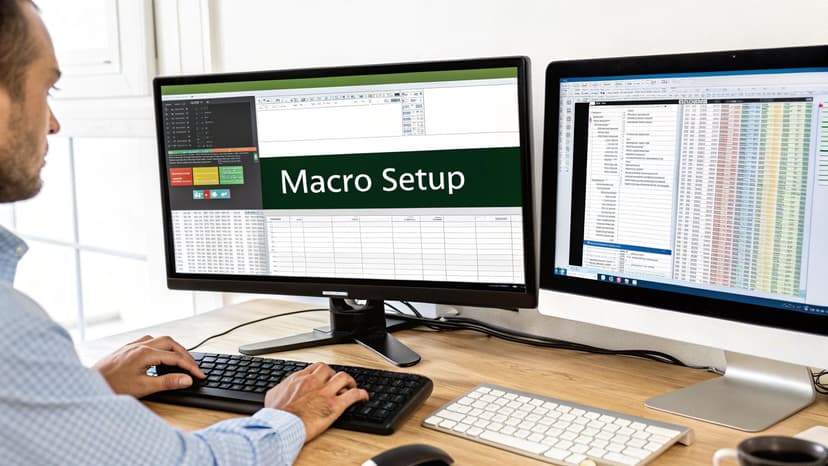
When you hit the limits of what Excel's standard tools can do, it's time to roll up your sleeves with Visual Basic for Applications (VBA). VBA is the scripting language built into Excel, giving you complete control to build custom solutions for automated data cleaning in Excel.
Don't let the word "programming" scare you. This isn't about becoming a software developer. It's about having a secret weapon for those unique, repetitive tasks that Power Query just can't handle—like applying logic based on cell colors or interacting with the worksheet in a very specific way.
Your Starting Point: The Macro Recorder
The simplest way to dip your toes into VBA is with the Macro Recorder. It’s an incredible learning tool that watches your actions in Excel and translates them directly into VBA code.
Think about a common task: every week, you have to find rows with a "Pending" status, highlight them bright yellow, and move them to a new sheet named "For Review." Instead of doing that by hand every single time, you can record it once. Excel will write the script for you.
Here's how to get started:
- First, make sure the Developer tab is visible in your ribbon. If it's not, you can easily enable it in Excel's options.
- Click Record Macro.
- Go through your cleaning steps exactly as you would normally.
- When you're done, click Stop Recording.
Just like that, you've created a macro. You can see the code it generated by opening the VBA Editor (a quick Alt + F11 on Windows or Option + F11 on Mac). This is where the real magic begins.
Expert Tip: Think of the Macro Recorder as your first draft, not the final product. It often generates clunky, inefficient code. The real power comes from taking that recorded script, cleaning it up, and adding your own logic—like loops and conditions—to make it truly smart and efficient.
Real-World Examples of VBA for Data Cleaning
VBA's true value comes from its ability to loop through thousands of rows and make decisions on the fly. For example, you could write a script that deletes a row only if the "Sales" column is zero and the "Status" column says "Inactive." This kind of multi-condition logic is precisely where VBA excels.
Another classic use case I see all the time is consolidating data from multiple tabs into one master sheet. A simple VBA script can cycle through every worksheet in a workbook, grab the data you need, and neatly stack it in a single table. It turns a mind-numbing copy-paste marathon into a one-click task.
While there are many ways to handle repetitive work, understanding the basics can seriously accelerate your workflows. For a broader view, check out our guide on how to automate Excel across different business functions.
By learning just a few core VBA concepts, you can build powerful, custom cleaning scripts that are perfectly suited to your team's specific needs, automating the kinds of jobs that built-in tools simply can't touch.
Why AI Is Your Secret Weapon for Messy Data
Power Query and VBA macros are fantastic for cleaning data when you can define the rules. But what happens when the mess is unpredictable? That’s where they hit their limit, and where artificial intelligence really starts to shine.
Think of it this way: AI offers something entirely different from rule-based cleaning. It’s not just following your instructions; it’s learning from your data to provide context-aware solutions for automated data cleaning in Excel.
Let’s say you have a customer list with names like 'John Smith', 'J. Smith', and 'Smith, John'. A standard tool just sees three different names. An AI-powered tool, however, is smart enough to spot these "fuzzy duplicates" and suggest combining them. Trying to build a fixed rule for every possible variation would be a nightmare.
This is the core value of AI. It’s not just about fixing the errors you know about—it’s about uncovering the ones you didn’t even know existed by spotting patterns that are nearly invisible to the human eye.
How AI Is Changing the Game
The leap forward in AI for Excel has been swift. We're now seeing sophisticated features like machine learning (ML) for pattern recognition and natural language processing (NLP) for making sense of unstructured text. An ML tool can chew through a dataset of 100,000 rows in just a few minutes, a task that might take a data analyst days of manual work.
The results speak for themselves. Companies using these tools have reported a 75% drop in data inconsistencies and a massive 90% reduction in duplicate entries. This isn't just a niche trend; in major Asian finance and e-commerce markets, over 40% of Excel-based data cleaning is now powered by AI. If you're curious about this shift, Coefficient.io has some great insights on AI's impact.
AI-powered add-ins like Elyx.AI bring this power right into your spreadsheet. Instead of wrestling with complex formulas or VBA scripts, you can simply tell the tool what you want in plain English.
With AI, you stop being the data janitor, manually scrubbing every row. You become the supervisor, directing an intelligent assistant to do the heavy lifting while you just sign off on the final, clean results.
Real-World Examples Where AI Excels
So, where does AI truly leave older methods in the dust? Here are a few common scenarios:
- Spotting Anomalies: Imagine an AI scanning your sales data. It sees an order for "10,000 units" when your average is around 100. It flags this not because you set a specific limit, but because it understands the context of your data and knows this is a serious outlier.
- Intelligent Standardization: You have a column of job titles with "VP of Mktg," "Marketing VP," and "Vice President, Marketing." An AI tool understands these all refer to the same role and can standardize them for you instantly.
- Sentiment Analysis: Got a column full of customer feedback? AI can read through those comments and automatically classify them as positive, negative, or neutral, turning messy, unstructured text into clean, usable data.
This level of automation was simply out of reach before. Tools like Elyx.AI let you ask your spreadsheet to "find and fix all inconsistent addresses" or "standardize all product names." This doesn't just save an incredible amount of time; it also dramatically improves the quality and accuracy of your final dataset. To see how these advanced methods fit into a broader strategy, check out our complete guide on how to clean data in Excel.
Choosing the Right Automation Method for Your Task
Picking the right tool for automated data cleaning in Excel can feel overwhelming, but it really comes down to matching the method to your specific challenge. You wouldn't use a sledgehammer to hang a picture, right? The same logic applies here. Each option, from simple built-in functions to sophisticated AI, has its own perfect use case.
Your decision should really hinge on a few key factors: how messy and large your data is, how often you have to repeat the cleaning task, and frankly, your own comfort level with Excel's more technical side. There isn't a single "best" method; the most effective strategy is the one that gets your job done with the least amount of friction.
For example, if you're pulling in structured data from the same source every week for a report, Power Query is an absolute game-changer. You build the workflow once, and it's set. But if you have a really quirky cleaning process that involves jumping between different worksheets and applying unique business rules, that’s where a custom VBA macro will give you the precise control you need.
A Framework for Your Decision
To make this choice a bit more concrete, let's break down the ideal scenarios for each approach. Think of this less as a strict set of rules and more as a mental checklist to help you land on the right tool.
- Quick, One-Off Fixes: For those little one-time cleanup jobs, you can't beat Excel's built-in tools. "Remove Duplicates" or "Find and Replace" are fantastic for tasks you don't plan on doing again.
- Repeatable, Structured Cleaning: Power Query is your workhorse for any recurring data prep. Think monthly sales reports, weekly inventory logs, or combining multiple CSVs into one clean table.
- Complex, Custom Logic: VBA is the specialist. It's built for those intricate tasks that need conditional logic or automation that goes beyond just transforming data columns.
- Unpredictable, "Messy" Data: This is where AI-powered add-ins like Elyx.AI really shine. They're brilliant at tackling fuzzy duplicates, standardizing inconsistent free-form text, and catching anomalies that rigid, rule-based systems would completely miss.
The real goal here is to stop doing things by hand. Manual cleaning isn't just slow; it's a recipe for mistakes. Automation brings speed and, more importantly, consistency, freeing you up to do actual analysis instead of being a data janitor.
This visual really drives home the point, showing just how much efficiency you can gain by automating your data cleaning.
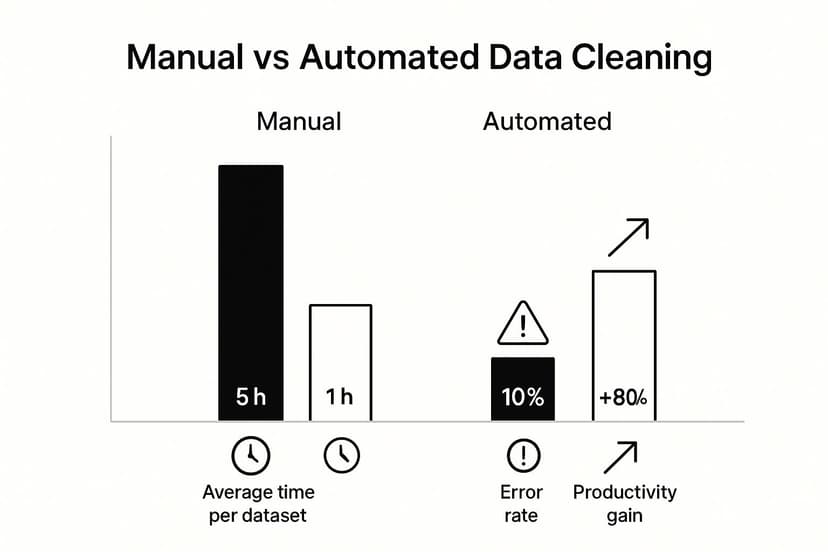
The numbers speak for themselves. Automation can slash cleaning time by as much as 80% and cut the error rate just as drastically, giving your productivity a massive boost. This isn't just about saving a few hours; it's about fundamentally improving the trustworthiness of your data. To see how this concept extends beyond just cleaning, our guide on automating your Excel reporting shows how these principles can transform your entire workflow.
To help you visualize the trade-offs, here's a quick comparison of the different methods.
Comparison of Excel Data Cleaning Automation Methods
| Method | Best For | Ease of Use | Flexibility | Scalability |
|---|---|---|---|---|
| Built-in Tools | Quick, one-off tasks | Very High | Low | Low |
| Power Query | Repeatable, structured workflows | Medium | High | High |
| VBA Macros | Highly custom, complex logic | Low | Very High | Medium |
| AI Add-ins | Unstructured, messy, or large datasets | High | Medium | Very High |
This table should give you a clearer idea of which path makes the most sense for your situation. There's no wrong answer—only the one that best fits your data, your schedule, and your skills.
The Rise of Intelligent Tools
The growing need for smarter solutions has created a huge market for these tools. The global data cleaning software market is on track to blow past $8.5 billion, largely thanks to tools that automate tricky tasks like deduplication and text standardization. These add-ins are already being used by over 2 million businesses, including 40% of the Fortune 500, which tells you this is a serious shift in how companies manage data. If you're curious about what else is out there, this roundup of top AI tools for Excel on powerdrill.ai is a great place to start exploring.
Got Questions About Automating Excel? Let's Unpack Them.
As you start dipping your toes into automated data cleaning in Excel, a few questions are bound to surface. It’s a big jump to go from hands-on, cell-by-cell cleaning to building systems that do the work for you. Let's tackle some of the most common questions I hear from people making this shift.
These aren't just technical details; they're the practical concerns that help you decide which tool or method is the right fit for your specific needs. Getting these answers straight will help you build smarter, more resilient workflows right from the start.
Can Power Query Really Handle a Bunch of Excel Files at Once?
You bet it can. In fact, this is one of Power Query’s most powerful and time-saving features. It has a dedicated "From Folder" connector that does exactly what it sounds like: you point it at a folder on your computer, and it pulls in data from every single Excel file inside.
The real magic happens next. You only need to set up your cleaning and transformation steps once. When next month's report or next week's sales data gets dropped into that folder, all you have to do is hit "Refresh." Power Query automatically scoops up the new file, applies all your predefined cleaning rules, and adds the new data to your main table. For anyone who regularly combines recurring reports, this feature alone is a game-changer.
Do I Still Need to Learn VBA if I'm Using Power Query?
Honestly, for most data cleaning work, probably not. Power Query is a powerhouse and will easily handle about 80% of what you need to do. It was built specifically for pulling in, transforming, and cleaning up structured data in a repeatable way. It's also far easier to learn and troubleshoot than VBA.
So, when would you need VBA? Think of VBA for the really unique, outside-the-box tasks. If your automation needs to interact with the Excel application itself—like creating new worksheets on the fly, triggering actions in other Office programs, or running complex, looping calculations that aren't just about transforming data—then VBA is your tool.
My advice? Master Power Query first. It will deliver a much bigger bang for your buck in terms of time saved versus time spent learning. Only dive into VBA when you encounter a specific problem that Power Query genuinely can't solve.
How Do AI Tools Actually Make Data More Accurate?
AI tools catch the kinds of errors that both humans and rigid, rule-based systems often miss. Instead of just looking for exact matches, their machine learning algorithms can spot subtle inconsistencies, identify outliers without you needing to set a specific threshold, and find "fuzzy" duplicates—think "Global Corp" vs. "Global Corporation." This ability to understand context allows them to catch a much wider net of potential errors.
But the best AI tools don't just go rogue and change your data. They work on what’s called a "human-in-the-loop" model. The AI acts as a brilliant assistant, flagging potential issues and suggesting corrections, but you always have the final say. This combination of smart detection and human oversight leads to a far cleaner dataset you can actually trust.
Ready to stop cleaning data and start analyzing it? Elyx.AI integrates directly into your spreadsheet, using AI to handle the tedious work of finding duplicates, standardizing text, and fixing errors for you. Try it today and get back hours of your week.
Reading Excel tutorials to save time?
What if an AI did the work for you?
Describe what you need, Elyx executes it in Excel.
Sign up