AI in Excel Explained: A Practical Guide to Smarter Data Analysis

Imagine your spreadsheet doing more than just holding data. What if it could actually understand it, anticipate your next question, and automate tedious tasks for you? That's the real promise of AI in Excel. It’s a transformation that turns your static grid of cells into an active partner, helping you analyze information, automate repetitive work, and uncover insights you might have otherwise missed.
This guide will provide practical, actionable steps to help you leverage these powerful tools. By the end, you'll have a clear understanding of what AI in Excel can do and how you can use it to solve real-world problems.
The New Era of Spreadsheets: Understanding AI in Excel

Spending too much time on Excel?
Elyx AI generates your formulas and automates your tasks in seconds.
Sign up →For years, Excel has been the go-to tool for organizing data. But we've all hit that wall where simple sums and averages just aren't enough to answer complex questions. This is exactly where artificial intelligence comes in, acting like a smart assistant right inside your worksheet.
Don't think of AI as some far-off, complicated technology. In Excel, it’s a set of practical tools built to solve everyday spreadsheet headaches. For example, instead of spending hours manually cleaning thousands of messy rows, an AI can standardize the data in seconds. Instead of wrestling with nested formulas to predict next quarter's sales, you can simply ask the AI to build a forecast for you.
What Does AI in Excel Actually Do?
At its heart, AI in Excel is all about automating tasks and discovering insights that used to require a great deal of time and specialized skill. It's not here to replace your expertise; it's here to augment it, making you faster and more effective at your job.
Most AI features in Excel fall into a few key categories:
- Task Automation: Handles repetitive work like cleaning inconsistent data, applying standardized formatting, or generating weekly reports.
- Data Analysis: Quickly spots trends, patterns, and outliers in your data that might not be immediately obvious.
- Predictive Insights: Uses your historical data to generate reliable forecasts for metrics like inventory levels, project timelines, or financial performance.
- Formula Generation: Builds complex formulas or even VBA scripts from a simple English description of what you need to accomplish.
By 2025, the integration of AI is set to completely reshape how we approach data analysis in Excel. The software has already evolved beyond its classic functions, with native features like Microsoft Copilot and FORECAST.ETS allowing for conversational data queries and automated forecasting. These tools leverage AI to manage complex calculations, giving you more accurate predictions and actionable insights in a fraction of the time. To get a better handle on this shift, you can master AI in Excel with this adoption guide.
This table breaks down how these modern AI capabilities directly solve common problems for Excel users.
Core AI Capabilities in Modern Excel
| AI Capability | What It Does | Key Benefit for Users |
|---|---|---|
| Data Cleaning | Automatically identifies and corrects errors, duplicates, and inconsistencies. | Saves hours of manual work and ensures data accuracy. |
| Trend Analysis | Scans datasets to highlight significant patterns, seasonality, and outliers. | Uncovers hidden insights without needing to build complex charts. |
| Predictive Forecasting | Uses historical data to generate future projections for sales, budgets, etc. | Makes data-driven planning and decision-making much easier. |
| Natural Language Queries | Lets you ask questions about your data in plain English ("What were the top sales in Q3?"). | Puts powerful data analysis in the hands of non-technical users. |
| Automated Summaries | Generates text-based summaries of key findings from a dataset. | Provides a quick, clear overview of your data's story. |
Each of these features is designed to make sophisticated data work more accessible and efficient for everyone.
Native Tools vs. Powerful Add-Ins
Microsoft has already started integrating AI directly into Excel with tools like "Analyze Data" and the new capabilities introduced with COPILOT. These are excellent starting points and provide a tangible sense of what’s possible.
However, to truly push the boundaries of what you can do, you'll want to explore specialized add-ins like Elyx.AI. These tools pick up where the native features leave off, offering more advanced options for generating formulas, cleaning data, and performing deep analysis. Getting the most out of AI in your spreadsheets usually means using a smart combination of both.
The goal is to make data science accessible to everyone, not just data scientists. With the right AI tools, anyone can turn a complex dataset into a clear, actionable story right within Excel.
This guide will walk you through both built-in features and powerful add-ins. We'll show you how these tools solve real-world problems, helping you graduate from just managing data to truly mastering it.
Exploring Native AI Features Built Into Excel
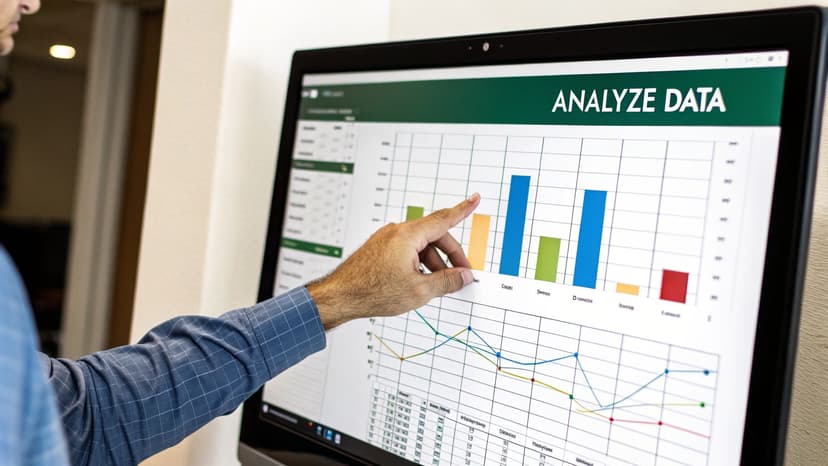
You might not realize it, but Excel already has some powerful AI features built right in. Microsoft has been adding smart tools that can automate analysis and simplify complex tasks, turning your go-to spreadsheet program into an intelligent data partner. These native features are the perfect entry point into the world of AI in Excel.
The core idea behind these built-in tools is to make data analysis more accessible. You no longer need to be a PivotTable expert or a formula wizard to uncover meaningful insights. Instead, you can let Excel's own intelligence do the heavy lifting.
Analyze Data: Your Instant Data Scientist
One of the most impressive native AI tools is Analyze Data, located on the Home tab. Think of it as having a data analyst on standby, ready to examine your numbers and highlight what’s most important.
Using it is incredibly simple. Just select your data range, click the "Analyze Data" button, and Excel’s AI gets to work. It scans your data for patterns, trends, and outliers, then presents them as ready-made charts, PivotTables, and summaries. You can insert any of these directly into your worksheet with a single click.
This feature is a lifesaver when you’re looking at a new dataset and aren't sure where to begin. It eliminates the guesswork and shines a spotlight on the most compelling parts of your data’s story.
Predictive Power with Forecasting Functions
Excel also provides AI-powered functions that can help you look into the future. The FORECAST.ETS function, for instance, is a game-changer for anyone working with time-series data, like weekly sales figures or monthly website traffic.
Instead of just drawing a simple trendline, this function uses a sophisticated algorithm (Exponential Triple Smoothing) to account for seasonal patterns. The result? Forecasts that are far more accurate and reliable. All you need to do is provide your historical data, and Excel handles the complex math behind the scenes.
With
FORECAST.ETS, you're not just guessing what might happen next; you're using a sophisticated statistical model to create a data-backed projection, all without leaving your spreadsheet.
This ability to predict future outcomes is crucial for everything from inventory management to financial planning. It’s part of a larger industry trend toward embedding AI everywhere, as seen in initiatives like Nilg AI's participation in Microsoft's Learn With Creators Program, which highlights how central AI education has become in the tech world.
The Simplicity of Dynamic Arrays
Another subtle but incredibly powerful AI-like enhancement is the introduction of Dynamic Arrays. They may not seem like "AI" at first, but they completely change how formulas work by making them smarter and more intuitive.
In the past, complex calculations often required clunky array formulas that were difficult to write and even harder to troubleshoot. Now, you can write a straightforward formula in a single cell, and Excel will automatically "spill" the results into the adjacent cells.
Here’s a practical look at what Dynamic Arrays can do:
- Filter Data Instantly: The
FILTERfunction lets you create a dynamic list that updates in real-time as your source data changes. - Create Unique Lists: With the
UNIQUEfunction, you can instantly pull a clean list of unique values from a column filled with duplicates. - Sort on the Fly: Use the
SORTfunction to create a sorted view of your data that always stays current, without requiring manual sorting.
These functions streamline your workflow by automating tasks that used to take multiple steps, making Excel feel more responsive and intelligent. By getting comfortable with these native tools, you'll unlock a new level of productivity.
How AI is Reshaping Modern Business Workflows
Artificial intelligence is quietly integrating into everyday tools like Excel, and it's doing more than just adding a few new features—it’s fundamentally changing how we approach work. The core objective is simple: to work smarter, not harder. Businesses are adopting AI to increase efficiency, make sharper decisions, and reduce the costly errors that often arise from manual data entry.
This isn't a niche trend; it's a global shift. The numbers are staggering. By 2025, it's expected that around 78% of organizations worldwide will be using AI in some capacity. This is a significant increase from just 50% six years ago, demonstrating how quickly companies are recognizing the benefits. This trend is particularly evident in data-heavy applications like Excel, where AI helps automate tedious tasks, create insightful visualizations, and even predict future outcomes. For a closer look at this growth, check out these key AI adoption statistics on Netguru.com.
The Drive for Smarter Decisions
At its heart, the push for AI in Excel is all about turning vast amounts of data into a competitive advantage. It used to take hours of painstaking work and advanced formula knowledge to find useful insights in a large spreadsheet. Now, AI acts like a built-in data analyst, ready to spot trends, flag anomalies, and suggest next steps in seconds.
Consider the practical implications. A sales manager can get an instant summary of top-performing regions instead of spending a day cleaning sales figures. A financial analyst can generate multiple "what-if" scenarios with just a few clicks, rather than building complex models from scratch. This speed allows teams to be more agile, making decisions based on real-time information instead of reacting to outdated reports.
Eliminating Costly Human Error
Let's be honest: even the most meticulous person makes mistakes. A single misplaced decimal or a typo in a formula can compromise an entire report and lead to poor business decisions. AI provides a fantastic safety net by automating the very tasks where these errors are most likely to occur.
Here are a few common examples:
- Data Cleaning: AI can scan thousands of rows in an instant to find and fix inconsistent names, addresses, and dates, ensuring your data is reliable.
- Formula Creation: Instead of struggling with a complex formula, you can describe what you want in plain English. An AI tool like Elyx.AI can then write the correct formula for you, eliminating syntax errors.
- Report Generation: Automating reports ensures that data is pulled and presented consistently every time, preventing manual mistakes.
By letting a smart system handle these repetitive, detail-oriented jobs, you're not just saving time; you're making your work more accurate and trustworthy. This frees you up to focus on the bigger picture—on strategy and analysis—instead of getting bogged down in data validation.
Becoming proficient with these AI tools is no longer just for data scientists; it's becoming a crucial skill for nearly every professional. Learning to use AI in Excel is about more than a new button on the ribbon—it's about staying relevant in a data-driven world. To see how this fits into the larger picture, it's worth exploring broader AI-driven workflow automation strategies. Building these skills ensures you’re not just crunching numbers, but are a key part of the decision-making process.
Give Your Workflow a Boost with Elyx.AI for Excel
Excel's built-in AI tools are a great starting point, but you'll eventually encounter problems they can't solve. When you need to tackle bigger, more specific challenges, a dedicated add-in like Elyx.AI is the answer. It’s designed to handle the high-value tasks that native functions can't manage on their own.
Here’s a useful analogy: Excel’s native AI is like a Swiss Army knife—versatile and great for common tasks. An add-in like Elyx.AI, on the other hand, is a specialized power tool, built to handle complex jobs with precision and speed. It bridges the gap between basic spreadsheet tasks and sophisticated data science, making powerful analysis accessible to everyone.
From Plain English to Complex Formulas in a Snap
One of the biggest frustrations in Excel is getting complex formulas right. Trying to remember the exact syntax for a nested IF statement or a tricky VLOOKUP can bring your workflow to a halt.
Elyx.AI eliminates this barrier. You no longer have to puzzle over the formula yourself; just describe what you want to do in plain English. For example, you could type, "Find the average sales for the 'North' region in Q3," and Elyx.AI instantly generates the correct formula.
This feature alone is a massive time-saver. It empowers you to perform calculations you might have avoided before, truly demonstrating how AI in Excel makes advanced features accessible to everyone, regardless of their skill level.
A Look at the Real-World Productivity Gains
Consider Sarah, a marketing analyst whose weekly campaign performance report used to consume half her day. She had to manually clean data from multiple sources, write formulas to calculate engagement rates, and even use VBA scripts to format the final report.
After installing Elyx.AI, her entire process changed. Here’s a quick breakdown of her new workflow:
- Data Cleaning: An AI command standardized all campaign names and removed duplicate entries in seconds.
- Formula Generation: Instead of searching online for formulas, she simply described the metrics she needed, and the AI built them for her.
- VBA Scripting: For her final report, she described the desired formatting, and Elyx.AI wrote the entire VBA script. No coding experience was needed.
The result? Sarah reduced her reporting time from four hours to just one. This gave her back precious time to actually analyze the data and develop new strategies—the work that truly adds value.
The infographic below illustrates how AI tools like this create tangible business benefits.
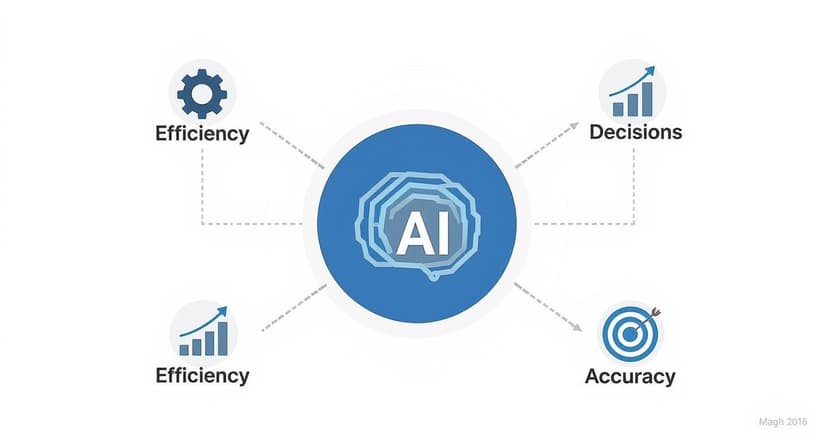
As you can see, AI isn't just a single feature. It's a catalyst that improves efficiency, decision-making, and accuracy simultaneously.
Native Excel AI vs Elyx.AI Features
To fully appreciate the difference, it helps to compare what Excel offers out-of-the-box with what a specialized add-in can do. The native tools are great for getting started, but Elyx.AI is built to solve more complex, time-consuming problems.
| Task | Native Excel Solution | Elyx.AI Solution |
|---|---|---|
| Formula Writing | Formula Autocomplete suggests functions. | Generate complex formulas and VBA scripts from plain English commands. |
| Data Cleaning | Manual use of functions like TRIM, PROPER, and Remove Duplicates. |
AI-powered commands to clean, format, and standardize entire datasets in one step. |
| Trend Analysis | Analyze Data feature can suggest charts and pivot tables. | Perform advanced statistical analysis, including regression and forecasting, with simple text prompts. |
| Data Extraction | Manually identify and copy data from unstructured text. | Extract specific information (emails, names, numbers) from text blobs automatically. |
While Excel's native features provide a solid foundation, Elyx.AI picks up where they leave off, turning difficult manual tasks into simple, automated actions.
Bringing Advanced Analytics to Everyone
More than just saving time, tools like Elyx.AI make sophisticated data analysis available to everyone. You no longer need a degree in statistics or programming to uncover the insights hidden in your spreadsheets. If you want to dive deeper, our guide on using AI for data analysis provides more practical examples.
By translating human language into machine commands, AI add-ins let you ask tougher questions of your data and get answers almost immediately.
This is a game-changer. It means the people who know the business best—the marketing analyst, the financial planner, the project manager—can now perform deep-dive analysis themselves. This leads to faster, more relevant insights that directly inform better business decisions. The real power of AI in Excel is putting data science tools into the hands of the people who need them most.
What AI in Excel Looks Like in the Real World
The true power of AI in Excel isn't just about new features; it’s about what it helps you achieve. It's about saving hours of tedious work, avoiding costly mistakes, and discovering valuable insights that were once buried deep in your data.
Let's explore how professionals in different roles are using these tools to transform the way they work. These practical examples show that no matter your industry, AI can become an indispensable partner right inside your spreadsheets.
For Financial Analysts, It Means Smarter Forecasts
In financial planning, there is no room for error. A small mistake in a forecast can have significant consequences. Consider a financial analyst—we'll call her Maria—who used to spend days bogged down in complex budget models. Her job involved manually adjusting variables to predict future revenue.
It was slow, painstaking work, with a constant risk of human error. Once she started using an AI add-in like Elyx.AI, her entire process changed. Instead of wrestling with formulas, she could now type a simple request: "Forecast revenue for the next four quarters based on the last three years of sales data, accounting for a 5% seasonal dip in Q2."
Instantly, the AI built a sophisticated model that factored in historical trends and seasonality—patterns she might have missed on her own. This not only saved her hours but also gave her a far more accurate forecast. For professionals like Maria, that means making better strategic decisions backed by more reliable data. To see more on this, check out our guide on how AI is being applied in financial analysis.
The real win here is shifting from manual number-crunching to actual strategic thinking. The AI handles the heavy lifting, freeing up the analyst to focus on what the numbers mean for the business.
This type of application is quickly becoming the norm, especially in developed economies. Global adoption data shows that the more mature an economy, the more its professionals use AI as a collaborative tool. A 2025 report found that higher-income countries have a much higher per-capita AI usage, which directly correlates with the adoption of AI-powered spreadsheet tools for business forecasting. Explore the full report on global AI adoption trends from Anthropic.com.
For Marketing Managers, It Means Hearing Every Customer
Understanding what customers really think is crucial for a marketing manager like David. His team used to be overwhelmed with thousands of survey responses and online reviews each month. Manually reading and sorting through this feedback was a nightmare.
A great deal of valuable feedback was simply being lost. By bringing AI into Excel, David could finally make sense of all that unstructured text. He could run a command on a column full of customer comments, such as, "Categorize this feedback into 'Positive,' 'Negative,' or 'Neutral,' and extract the main themes from each."
Within minutes, his spreadsheet was neatly organized. It had sentiment labels and a clear summary of recurring topics, like "slow shipping" or "great customer service."
- The Problem: Drowning in qualitative customer feedback with no efficient way to process it.
- The AI Fix: Using natural language processing inside Excel to automatically sort comments by sentiment and identify key topics.
- The Result: David could now spot urgent customer issues almost immediately. He could go to the product team with hard data, leading to faster fixes and happier customers.
For HR Specialists, It Means Finding Hidden Talent Trends
Imagine being an HR specialist like Emily, tasked with sifting through annual employee performance reviews to identify top talent and find areas for team development. The dataset was massive, filled with performance scores, project statistics, and manager notes.
Trying to connect the dots manually was not only tedious but often missed the bigger picture. By using Excel's built-in Analyze Data feature alongside Elyx.AI, she could start asking direct questions, such as, "Show me the correlation between training hours and performance scores by department," or "Identify employees who consistently meet deadlines but receive low peer feedback scores."
The AI began to highlight patterns that weren't obvious at first glance. For example, it identified a top-performing team that was on the verge of burnout due to a consistently high workload. This insight allowed Emily to shift from reactive problem-solving to proactive talent management. She could now design support programs before problems escalated, turning a simple spreadsheet into a powerful tool for strategic workforce planning.
Your Next Steps to Mastering AI in Excel
Feeling inspired by what AI in Excel can do? The best part is you don't need to be a data scientist to get started. By taking a few small, deliberate steps, you can completely transform how you work with spreadsheets, turning them from a chore into a powerful, intelligent assistant.
The journey begins with a simple shift in mindset. Stop seeing Excel as just a static grid of numbers and start thinking of it as an active partner that can handle the grunt work and help you find hidden gems in your data. The key is to pick one manageable task and build from there. You'll be surprised how quickly those small wins add up, saving you hours and improving your results.
Your Simple Three-Step Plan
Ready to jump in? Here’s a straightforward, actionable plan you can start using today. The goal isn't to become an expert overnight, but to build confidence and momentum through practice.
-
Experiment with a Native Feature This Week: Don't overthink it. Just pick one of Excel's built-in AI tools, like Analyze Data. Grab a dataset you know well—maybe last month's sales figures or a project timeline—and click the button. See what insights it uncovers. This quick experiment will show you, in real-time, how AI can spot patterns you might have easily overlooked.
-
Identify and Automate One Repetitive Task: Think about your weekly routine. Is there one task you do over and over? Maybe it's cleaning up contact lists or constantly reformatting the same report. Make it a personal challenge to automate it. Whether you use a Dynamic Array function or a simple prompt, automating even one tedious job frees up your mental energy for more strategic work.
-
Explore an Add-In for a Bigger Challenge: Once you've got a feel for the basics, think about a bigger problem a specialized tool like Elyx.AI could solve. Perhaps you need to generate complex formulas just by describing what you want, or even create VBA scripts without knowing a single line of code. Installing an add-in like this can unlock a whole new level of capability.
The most important step is the first one. By choosing one small action today, you're not just learning a new feature; you're building the skills to stay ahead in a data-driven world.
This approach makes learning feel less like a daunting task and more like an exciting adventure. Start small, stay consistent, and watch as you gradually become a pro at using AI in Excel.
Got Questions About AI in Excel? Let's Clear Things Up.
Adopting new technology can feel like a big leap, but you'll be surprised at how intuitive AI feels inside a spreadsheet. Most of these tools are designed to work for you, not the other way around. Let's tackle a few common questions to get you started on the right foot.
Is AI in Excel Difficult for a Beginner to Pick Up?
Not at all. The beauty of modern AI tools is that they are built for everyone, not just data scientists. Features already integrated into Excel, like Microsoft's "Analyze Data," do the heavy lifting with a single click, providing charts and summaries without you needing to write a single formula.
Tools like Elyx.AI simplify the process even further. You can just type what you want in plain English. Instead of trying to remember the right function, you just ask for it. This turns complex analysis into something that feels more like a conversation.
Do I Need to Pay for an Expensive Subscription?
There are plenty of options available, so you don't have to break the bank. Your standard Microsoft 365 subscription already includes powerful AI features like Dynamic Arrays and Forecasting Sheets at no extra cost.
For more specialized tasks, third-party add-ins often have a subscription fee. However, when you consider the hours they save you, the return on investment is often clear. Plus, most offer free trials, allowing you to test them and see the value for yourself before committing.
Think of it this way: The built-in tools are fantastic for everyday problems. Premium add-ins are like calling in a specialist for the really tough, high-stakes work.
How Does AI Actually Make Data Analysis More Accurate?
This is one of the most significant benefits of using AI: it drastically reduces human error. We've all been there—one wrong keystroke in a formula or a minor typo can compromise an entire report. AI acts as your safety net.
Here’s how it improves accuracy:
- Automated Data Cleaning: AI can spot and correct inconsistencies, typos, and duplicate rows in seconds. This ensures you're working with clean, reliable data from the start.
- Perfect Formula Generation: When you describe what you need and AI writes the formula, you eliminate the risk of syntax errors or logical mistakes in complex calculations.
- Unbiased Pattern Spotting: An AI algorithm doesn't have preconceived notions. It can identify subtle trends and outliers in your data that you might have otherwise missed, giving you a much clearer picture.
By taking over these meticulous tasks, AI in Excel doesn't just speed up your work; it makes it far more trustworthy and accurate.
Ready to stop wrestling with formulas and start getting real insights from your data? Elyx.AI integrates seamlessly into Excel, allowing you to generate formulas, clean data, and create reports with simple English commands. Start your free trial today and see the difference.
Reading Excel tutorials to save time?
What if an AI did the work for you?
Describe what you need, Elyx executes it in Excel.
Sign up